HubSpot records, in the right row.
Add a row, or update the matching one, whenever a record goes through a HubSpot workflow. Dates arrive as dates, owners and stages as names, and columns are matched by their headings.
| A | B | C | D | E | F | |
|---|---|---|---|---|---|---|
| 1 | Deal stage | Amount | Close date | Deal owner | Synced at | |
| 2 | ada@marlowfinch.co.uk | Closed won | 4,800.00 | 12/11/2026 | Priya Shah | 12/11/2026 09:14 |
| 3 | tom@hollis.studio | Contract sent | 1,250.00 | 18/11/2026 | Ben Okafor | 13/11/2026 16:02 |
| 4 | grace@northfold.io | Closed won | 9,600.00 | 14/11/2026 | Priya Shah | 14/11/2026 11:47 |
What it fixes
| Column | A plain sync writes | Sheets Sync writes |
|---|---|---|
| Close date | 12/11/2026, in your portal’s time zone | |
| Deal owner | Priya Shah | |
| Deal stage | Closed won | |
| After you move a column | Still found by its heading | |
| Same email again | The first row, updated |
After it runs

Failures you can see

No column limit
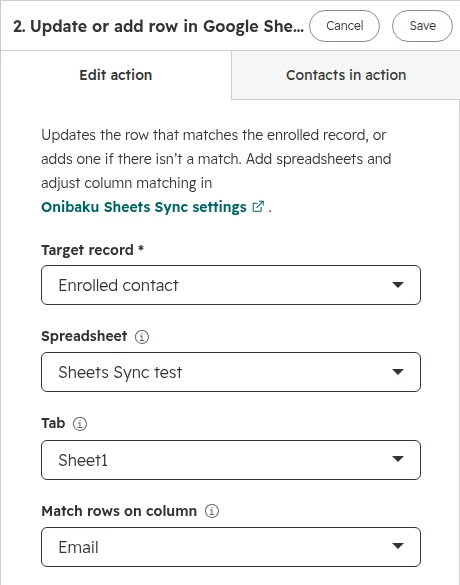
It’s a normal workflow action
Pick the spreadsheet, the tab and, for updates, the column to match on. That’s the whole set-up inside HubSpot.
Read-only access to your CRM. Google access covers only the spreadsheets you pick.
Price
Free
$0
100 rows a month, every feature.
Pro
$15 a month
Unlimited rows for the whole HubSpot account, or $150 a year.